
WordPress template
A WordPress template is a kind of preparation for a website, which has built-in customisation options for the design, has functionality for inserting content and often also has structural customisation options for the page.
Why use a template for your website?
WordPress is the most popular platform for creating and customising different types of websites, and it simplifies the process of building a website in several ways. One of the most popular ways of creating a website is to create it from a pre-made template (theme), which already has a set design and structure, all that remains is to make changes to the content and adapt it.
Customising your WordPress template helps you get the content you want and keep your design true to your brand.
This way, you can quickly have a ready-made website tailored to your industry, and if you find the right template, it's the cheapest option.
Building a website from a template works best when the structure and style of the template is initially appropriate for what you want to get out of it.
What to consider?
If the template needs to be redesigned beyond the customisation options provided in the template, the redesign may cost more in total than the alternatives:
- build a unique website from scratch;
- or from ready-made blocks.
WordPress template customisation allows you to control the design, look and functionality to ensure your site meets your needs and goals. In this article, we'll look at important steps and tips for customising templates on the WordPress platform.
Unfortunately, you won't be able to fully test the template before you buy it, so there is a risk, but there are ways to reduce the risk:
- It is imperative that a preview of the template is available, make sure you take enough time to study not only the template description and images, but also the preview (preview, demo page)
- The platform should contain feedback from those who have already purchased the template. We recommend that you not only look at the number of stars, but also read these reviews
- If you plan to have your website installed and customised by a specialist, make sure you consult the specialist who will be working with the template and your website before you buy it.
If you do encounter any problems, remember that template developers usually also offer technical support and bug fixes. If something doesn't work in the template, or if some of the functionality that was promised in the administration panel is not available, don't hesitate to contact the template developer. You can do this on the platform through which you purchased the template. Reputable template developers will help you find the expected functionality in the wp admin panel or, if it is a technical bug, will fix the problem in the next version of the template. If the support period has not expired, you can install all updates for your website for free.
8 Steps to consider when building a website with a template
1. select the appropriate template

The first step is to choose the most appropriate template. Free and paid templates are available. Many free templates will be available already in the wordpress installation, paid themes are available on many platforms, but the most popular is the ThemeForest platform. Templates should be chosen based on the company's industry, goals, style appropriate to the company's brand. Once the structure, style and functionality of the template matches what you are looking for, it is also important to thoroughly research (demo page) preview and check the feedback to make sure that the template will also be easy to administer, configure and match the template description.
Once the template is selected, all you need to do is download it and install it in your wordpress installation.
2. Update WordPress, Template and plugins:
Before you start customising, make sure you have the latest WordPress version and template updates. This will ensure security and optimal performance. Sometimes a newly installed template actually has a newer version available, you can check if you have the latest version on the WordPress website by searching here [Dashboard -> Updates].
3. Post your content on the website:

If you already have content on your website before the template change, then the same content will be available through the new template, but for a fresh WordPress installation you will of course need to create content. In any case, after changing the template, it is a good idea to at least review the content to make sure that the text is still up to date and that the images are also in line with the content and the design of the website.
4.Adjust the layout and appearance of the template:
Use the template editor to change the layout of the template. You can find it in the WordPress administration panel. Customize your page titles, layout, affiliate pages and other elements to improve the user experience.
To change the look of the template, use the Customizer, where you can edit colours, fonts, background images and other visual elements. If you want to make more extensive changes, you can use the CSS customisation language.
Each template can also have its own special way of changing a particular thing. If you don't know the solution, remember that there is a good chance that someone else has already had this problem and there may be tips for it on the internet.
If you have just bought a template, your template developer will certainly have a support centre you can contact about any difficulties you are having with their template.

5. Add plug-ins (plugin):
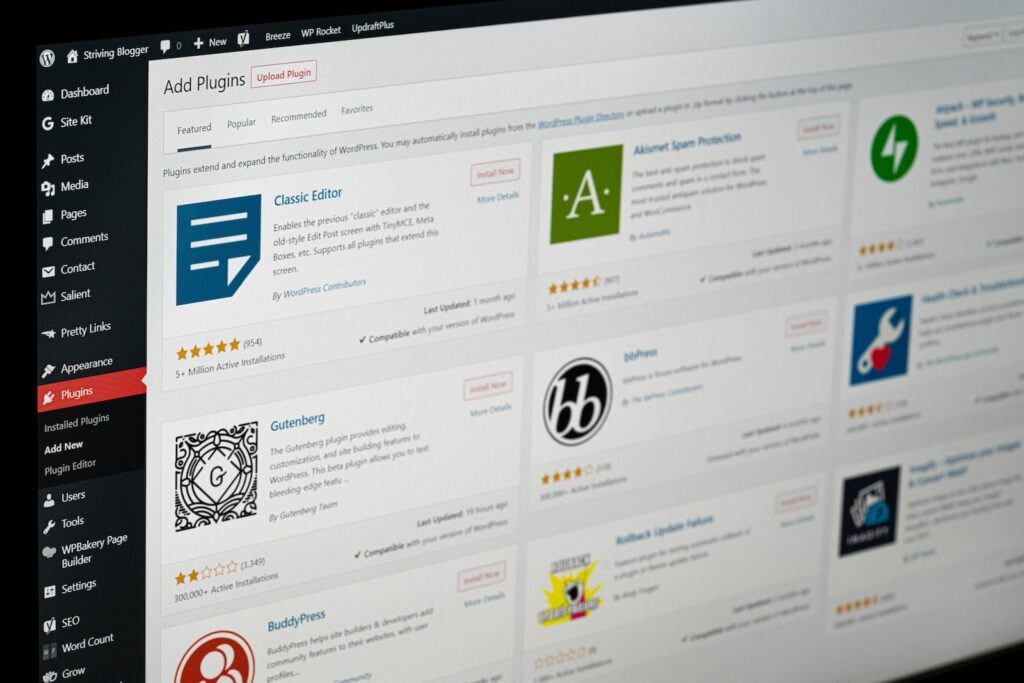
WordPress offers many plugins that can enhance the functionality of your website beyond the functionality included in the template. For example, if you want to add a contact form, search for "contact form" plugins and install them.
6. Adjust the template code (if necessary):
If you encounter a limitation in a template and the template developers' support does not solve the problem for you, or you do not find the plugin you need, then you need to get a programmer on the case.This will require specific knowledge, but if you can describe what you want, the programmer will certainly be able to make corrections or create a completely new separate solution for a specific problem.
Also, a new programmed add-on will usually have its own customisation options in WordPress or in an existing template.
If you are an experienced WordPress user yourself and want to make more in-depth changes, you can customise the template code. Before doing so, be sure to make a backup copy to avoid data loss and be able to revert the code back to its original state if necessary.

7. Test and optimise:

After customising your template, always check your site to make sure everything is working properly and looks the way you intended. A website is a living art, it has a publication date, but it is never completely finished, once the planned changes have been made and the website is published, keep creating new content, optimise SEO and the website's speed.
8. Use WordPress community support:
If you encounter difficulties, you can also look to the WordPress community for solutions. There are forums, groups and documentation available on the internet to help you solve problems that arise when building websites.

Need help getting your website up and running?
Book a consultation
